Document signing software

Get business documents signed without the back-and-forth.

Upload a PDF, place the required fields and send one clear link. Track progress from your dashboard, then download the signed PDF and audit certificate.
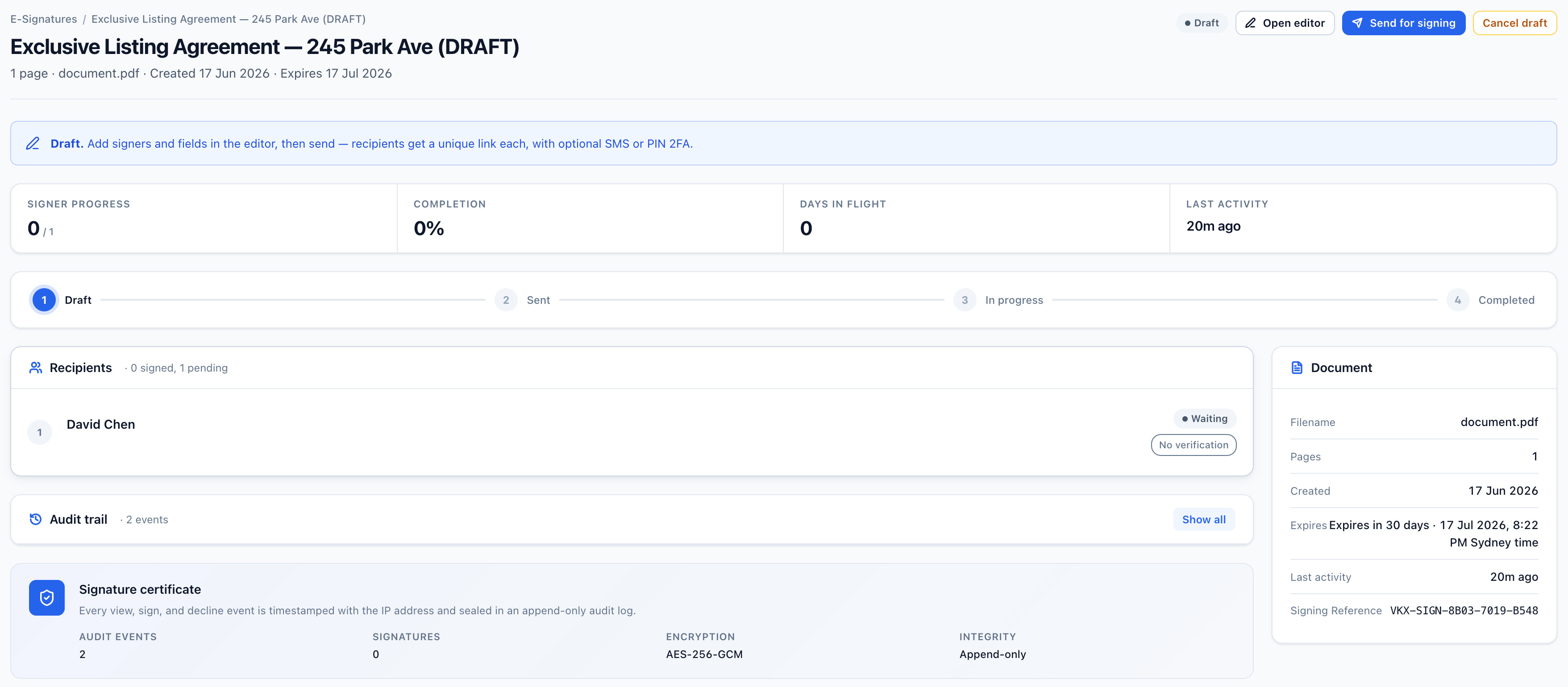
Vukorix E-Sign editor showing a PDF with signature, date and name fields placed for a signer

Recipients open the link and sign in their browser without creating a Vukorix account. Your team can see what is complete and what still needs attention.

Features

Everything your team needs to keep signatures moving.

Prepare documents faster

Vukorix detects existing fillable fields and lets you add signature, date, initials and name fields where they are needed.

Reduce signing follow-up

Send to one person or several and use automatic reminders to keep the signing workflow moving.

Keep a clear signing record

Receive the completed PDF and an audit certificate with recorded signing events and available access information.

Make changes before sending

Add text, comments, strikethroughs, ticks and crosses, or remove selected PDF text before the document goes out.

Add an extra access check

Use a 4-digit PIN or SMS code when a signing link needs an additional recipient access step.

Reuse standard documents

Start a fresh E-Sign draft from a Document Library template without changing the saved original.

How it works

From PDF to signed document in four clear steps.

Prepare the document once, send one link and follow the progress from your dashboard.

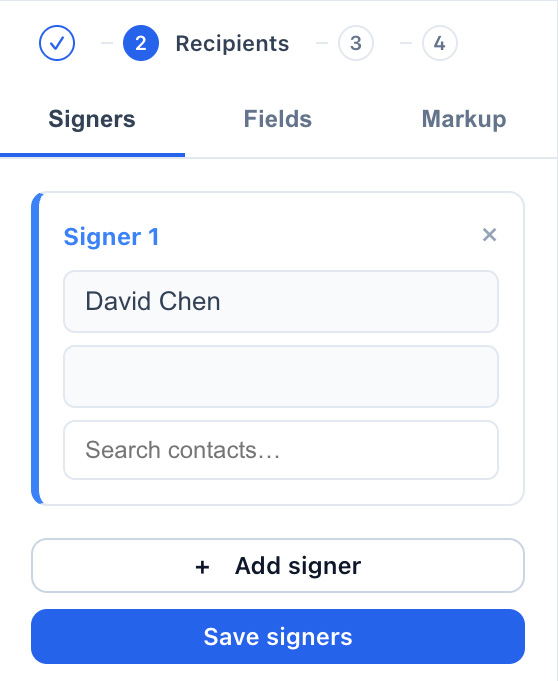
Add the people who need to sign

Choose the recipients and assign the fields each person needs to complete.

Vukorix E-Sign recipients panel with a signer added and per-signer verification options

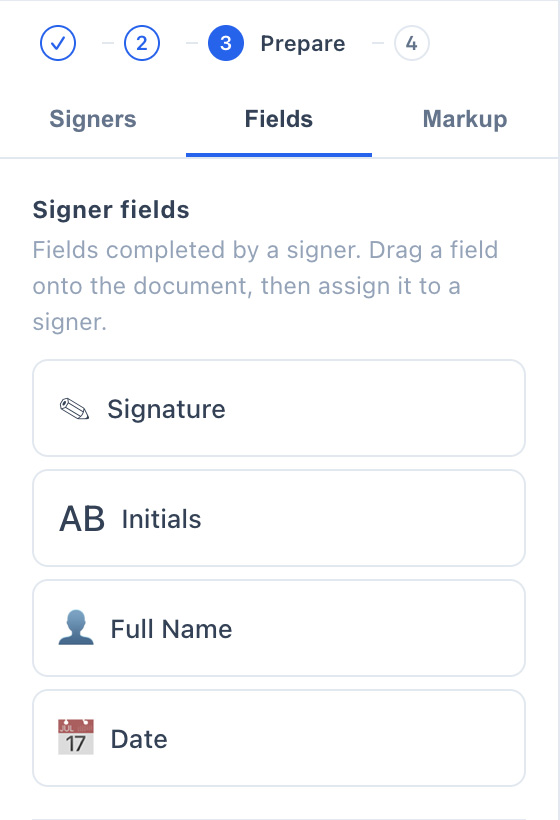
Place the required fields

Add signature, date, initials and name fields where each recipient needs to complete them.

Vukorix E-Sign editor with signature, date and name fields placed on the PDF
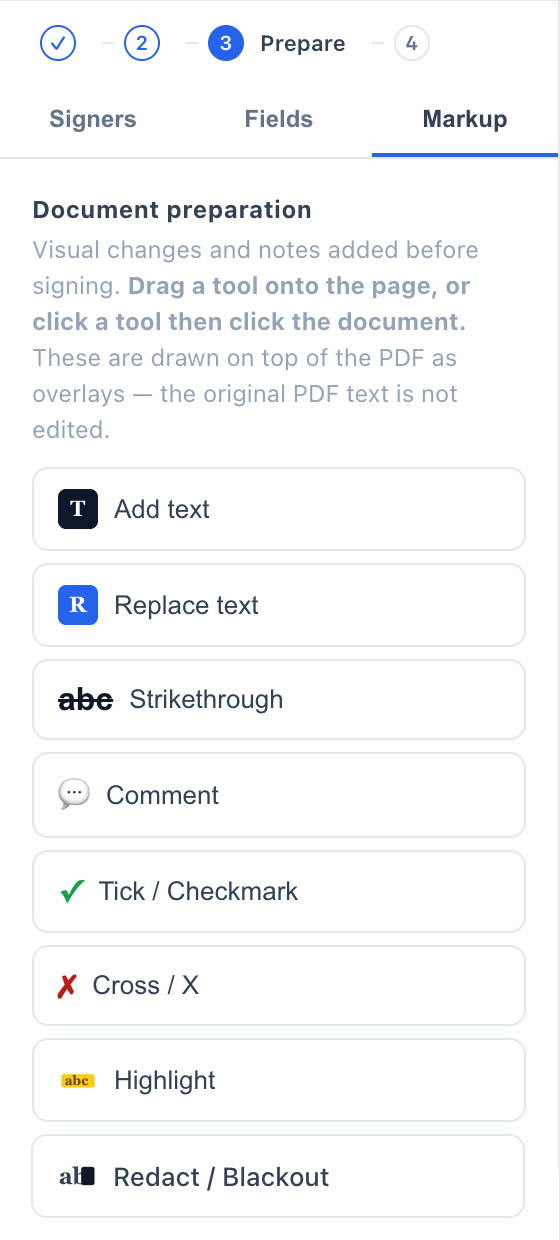
Prepare the document

Make the document ready before it goes out.

Add text, comments, strikethroughs, ticks and crosses without leaving the E-Sign editor.

Manual PDF Redaction removes the underlying PDF text in selected areas and creates an image-based exported page. Review the exported document before sending.

Vukorix E-Sign markup toolbar with text, strikethrough and comment tools, and a permanent blackout applied to a PDF

Set access and send

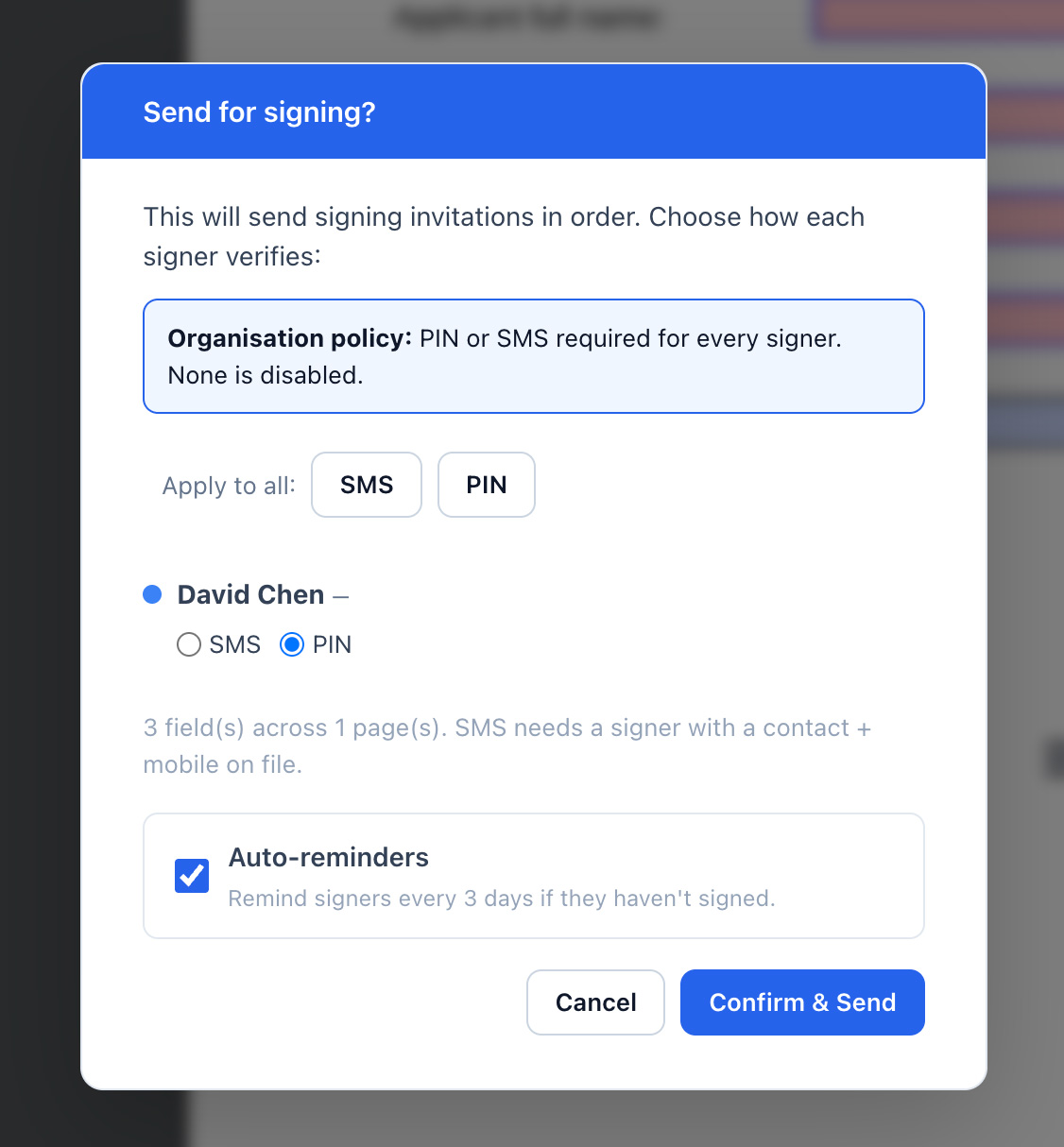
Choose any optional PIN or SMS access check, then send the signing link.

Vukorix E-Sign send dialog with per-signer PIN or SMS verification and automatic reminders

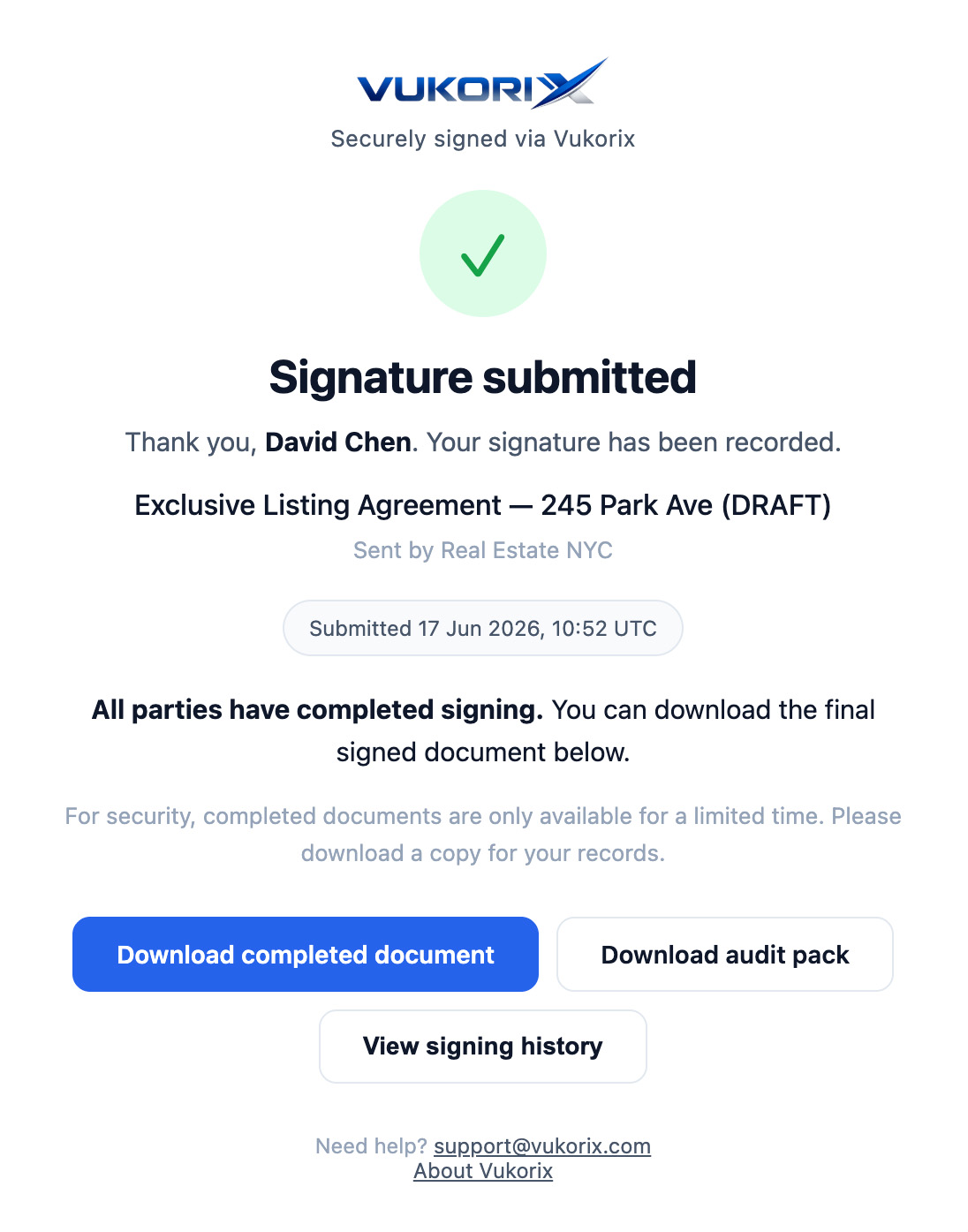
Clients sign without creating an account

Each recipient opens the link, completes the requested fields and submits the document in their browser.

Vukorix E-Sign confirmation that a signer has submitted their signature in the browser
Completed record

Keep the signed document and its signing record together.

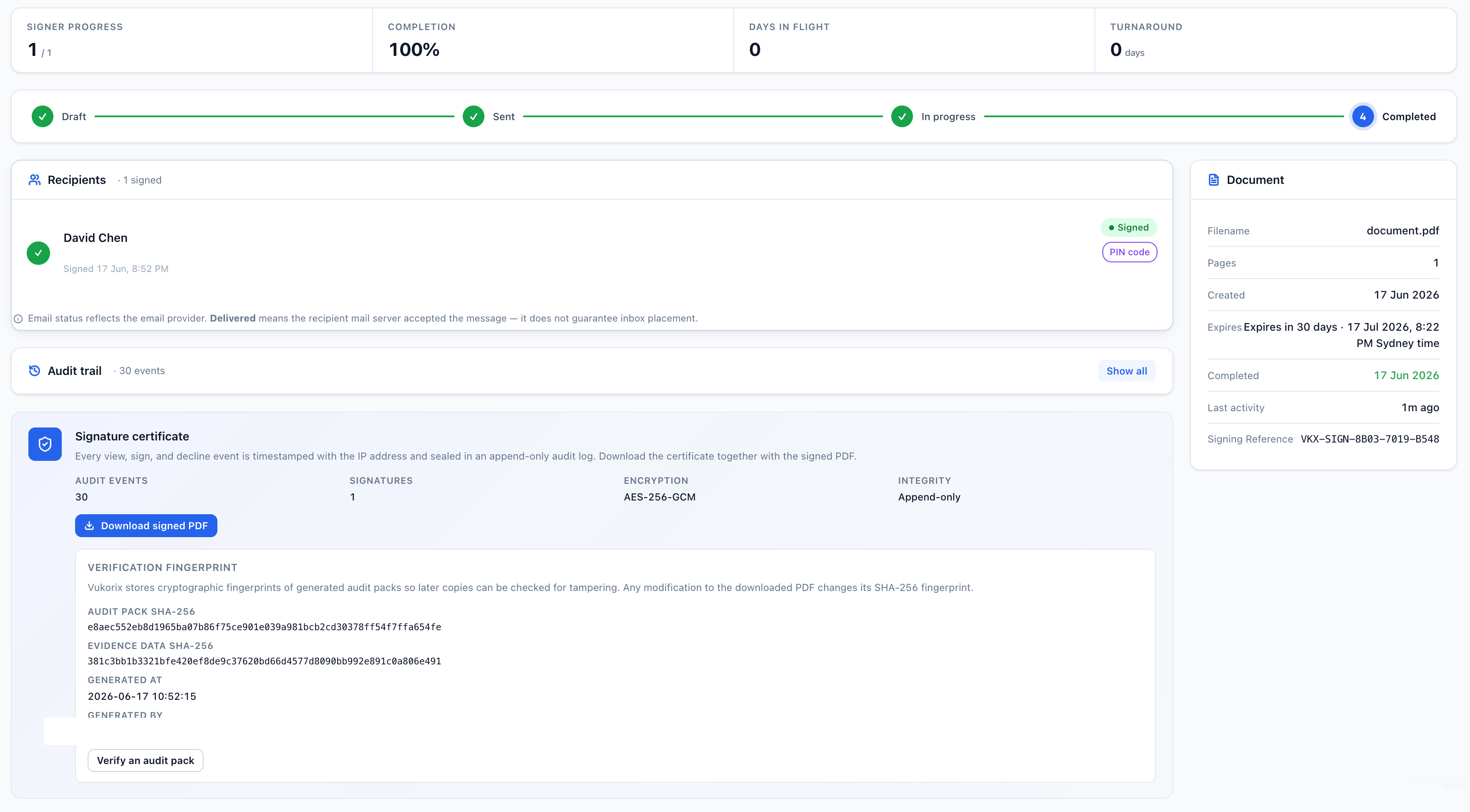
When signing is complete, download the signed PDF and a separate audit certificate with signer events, timestamps and available access details.

Vukorix E-Sign completed document showing signer events, timestamps and audit certificate details
Signed PDF
Audit certificate
Signer events and timestamps
Recipient details
Access method where used
Downloadable signing record
Review later

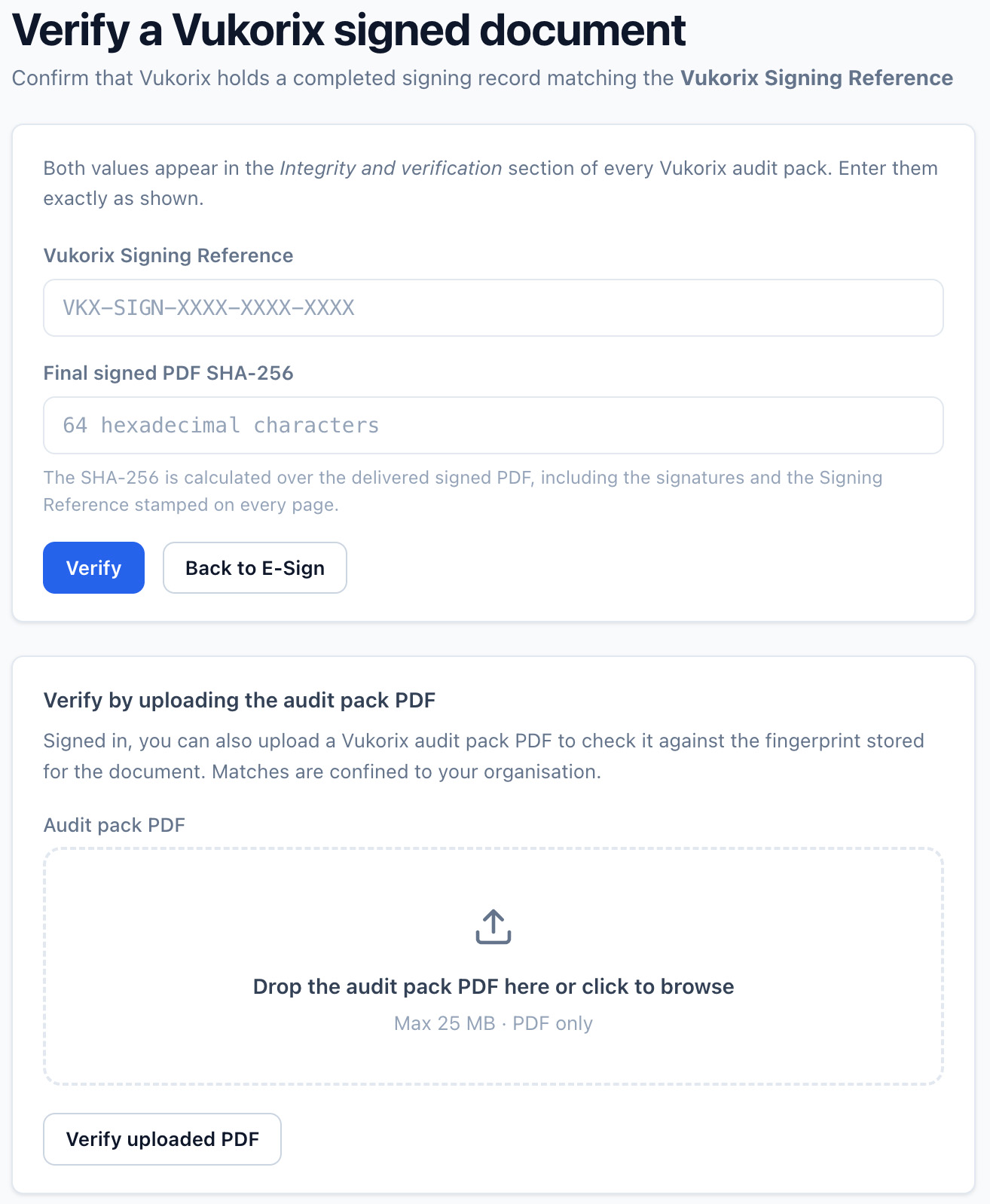
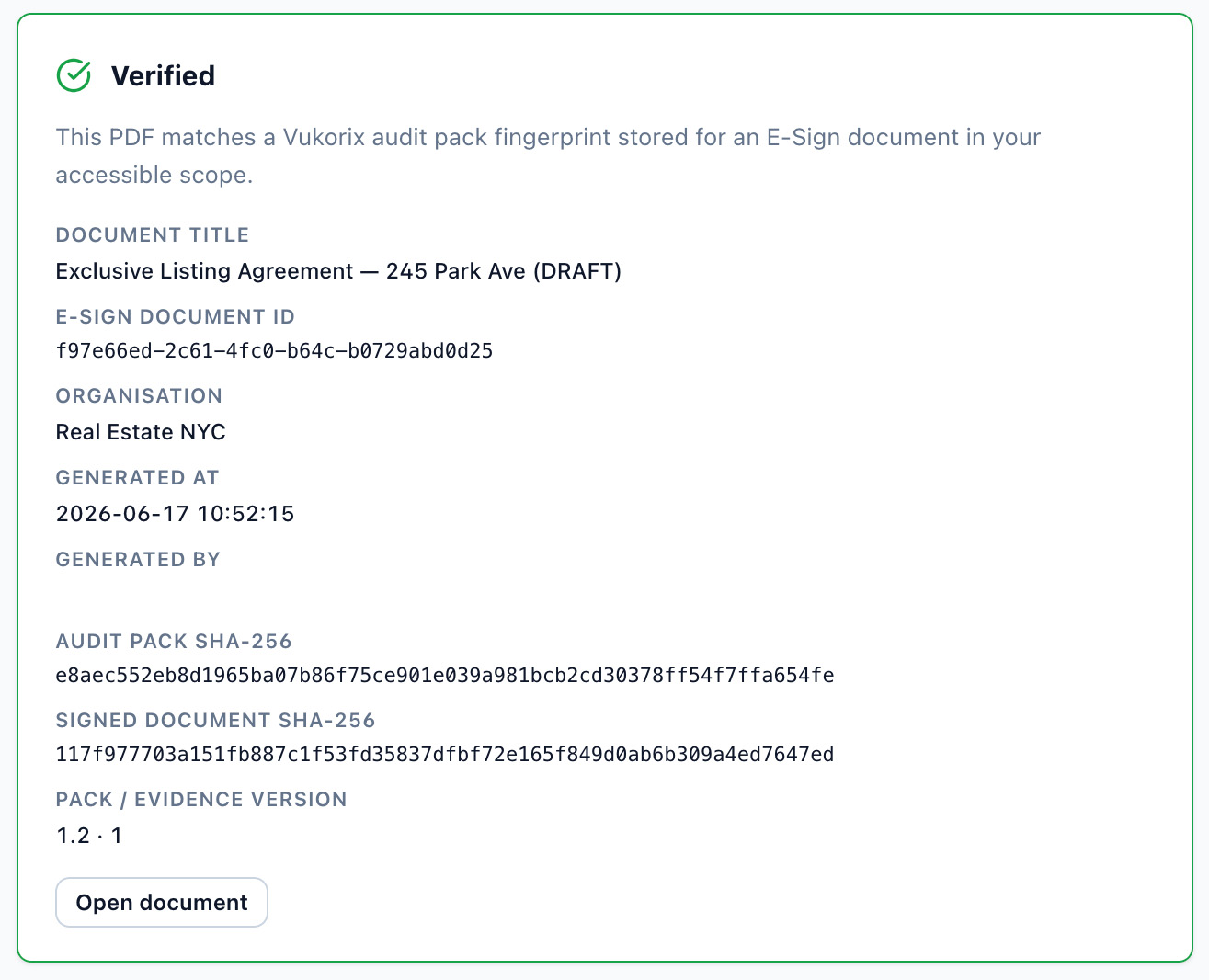
Review a completed signing record when you need it.

Open the completed document record to review the signer activity, audit certificate and document details.

Vukorix E-Sign screen for reviewing a completed document record
Vukorix E-Sign result showing completed document details
Document updates

Keep document changes connected.

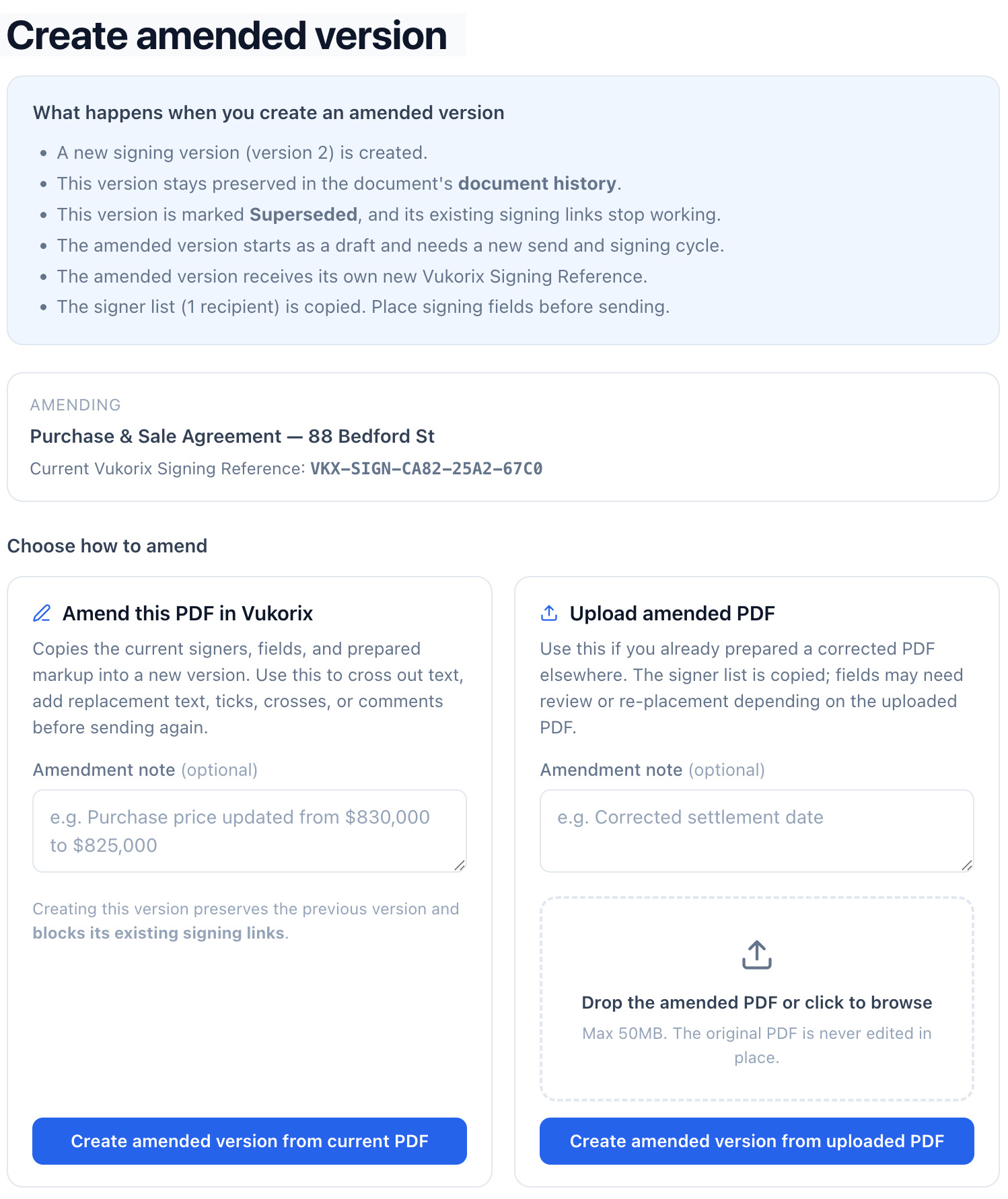
When a sent document needs to change, create an amended version instead of starting a separate workflow.

The original and amended versions stay linked so your team can follow the document history.

Vukorix E-Sign create amended version screen that supersedes the original document and preserves history

How E-Sign is protected. E-Sign documents are encrypted in transit and at rest throughout the workflow. Standard encryption supports the automated processing required to prepare the document and generate the completed PDF and audit certificate. See the full security architecture →
E-Sign FAQ

Common questions about E-Sign.

What is document signing software?

Document signing software lets you send a document to one or more recipients, collect signatures and keep the completed file and signing record together.

Can I send a PDF for signature?

Yes. Upload a PDF, place the required fields, choose the recipients and send the signing link.

Can I send contracts for signature with Vukorix?

Yes. E-Sign can be used for contracts, agreements, engagement letters, approvals, client forms and internal documents supplied as PDFs.

Do clients need a Vukorix account to sign?

No. Recipients open the link and complete the requested fields without creating a Vukorix account.

Are e-signatures from Vukorix legally binding?

Electronic signatures are commonly used for many business documents, but requirements vary by document type and jurisdiction. Obtain legal advice for documents with special signing requirements.

What does the audit certificate record?

The audit certificate records signing events and available access information, including timestamps, recipient details, IP address where recorded and the signature method.

What file types and sizes does E-Sign support?

E-Sign accepts PDF source documents up to 50 MB. Other file formats must be saved as PDF before upload.

What happens after a document is completed?

Download the signed PDF and audit certificate from your Vukorix dashboard and store them in the records system your organisation uses.

Related workflows: Document Library · Smart Forms · Pricing

Common use cases: Real estate · Mortgage & finance · Legal · Healthcare · Professional services

Ready to get your next document signed?

$9.99/month with 3 seats included. Start with a 7-day free trial, no credit card required.